
VST3
Scan installed plugins
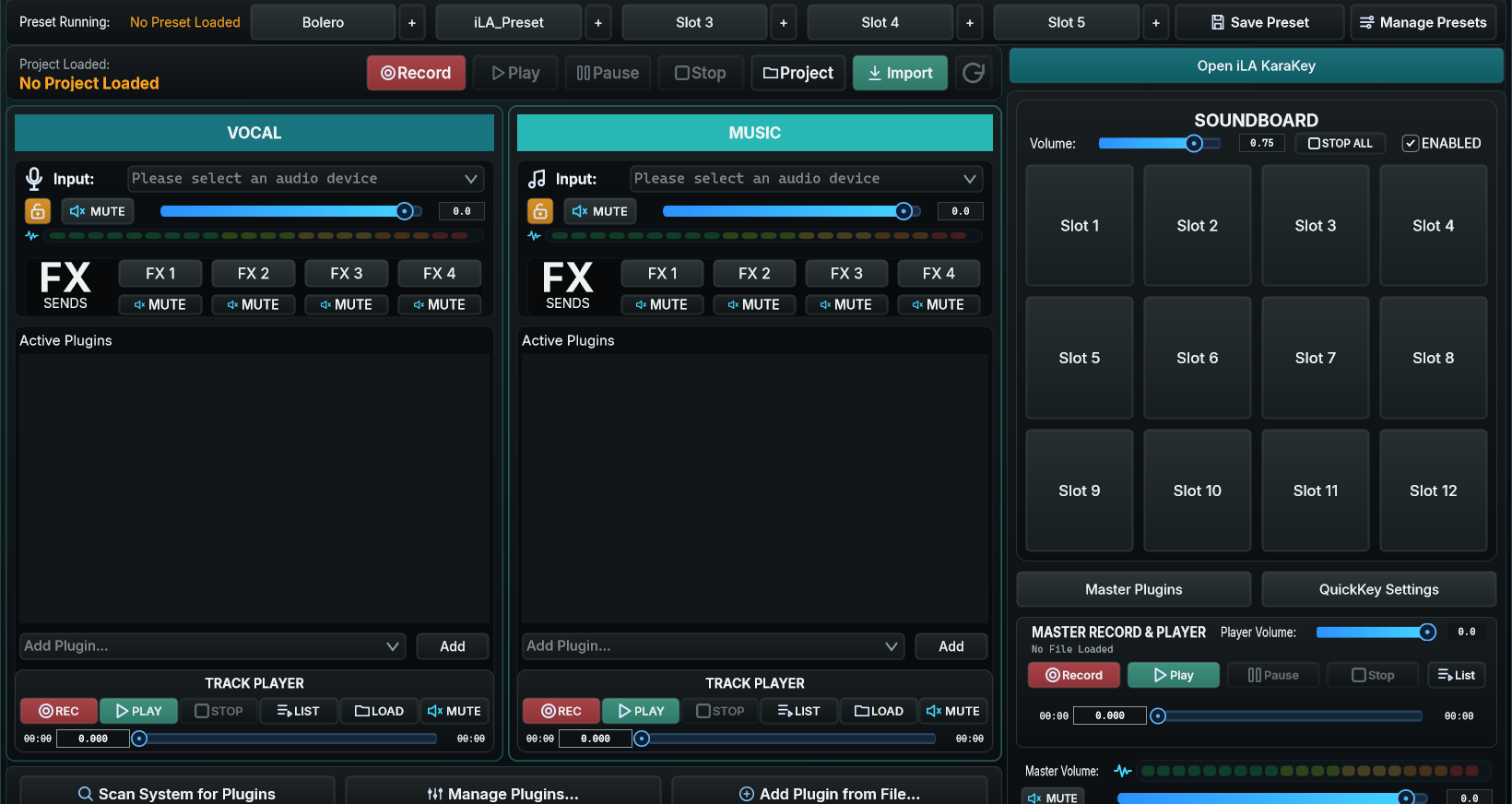
Install the VST3 plugin and its vendor license first. In idolLiveAudio, choose Scan System for Plugins. The first scan can take several minutes on a PC with many plugins.
- Add only trusted plugins you have tested.
- Missing plugin: open Manage Plugins to review its scan state or location.
- Avoid rescanning in the middle of a live session unless necessary.
CHAIN
Place plugins in the right processing stage
Pitch, EQ, compression, de-essing, and direct microphone processing.
Vocal sends for reverb/delay, keeping the wet signal separately controlled.
EQ or level control that affects music only.
Gentle bus compression/limiting for the combined vocal and music mix.
If meters stay red or the sound distorts, reduce the input/level before adding a limiter. A limiter cannot repair an already clipped input.
PRESET
Save and recall a setup
- Finish the chain and verify each plugin's ON/OFF state.
- Choose Save Preset and use a recognizable name, such as voice + genre + microphone.
- Assign frequently used presets to Slots for quick switching during a live session.
When loading a preset containing Waves or another large plugin, wait for loading to finish. A plugin can need a few seconds to initialize and read its license; do not click Load repeatedly.