
If your audio interface supports ASIO, install the latest manufacturer driver and connect the device first. Close OBS, TikTok LIVE Studio, your DAW, and other apps using audio.
iLA Nexus
Download the official manager
Open the Download page and get iLA Nexus. Do not use installers from file-sharing links or other websites.
- The Windows publisher must be ILA SOFT COMPANY LIMITED.
- If SmartScreen appears for a new release, verify the Publisher before continuing.
ACCOUNT
Sign in and refresh products
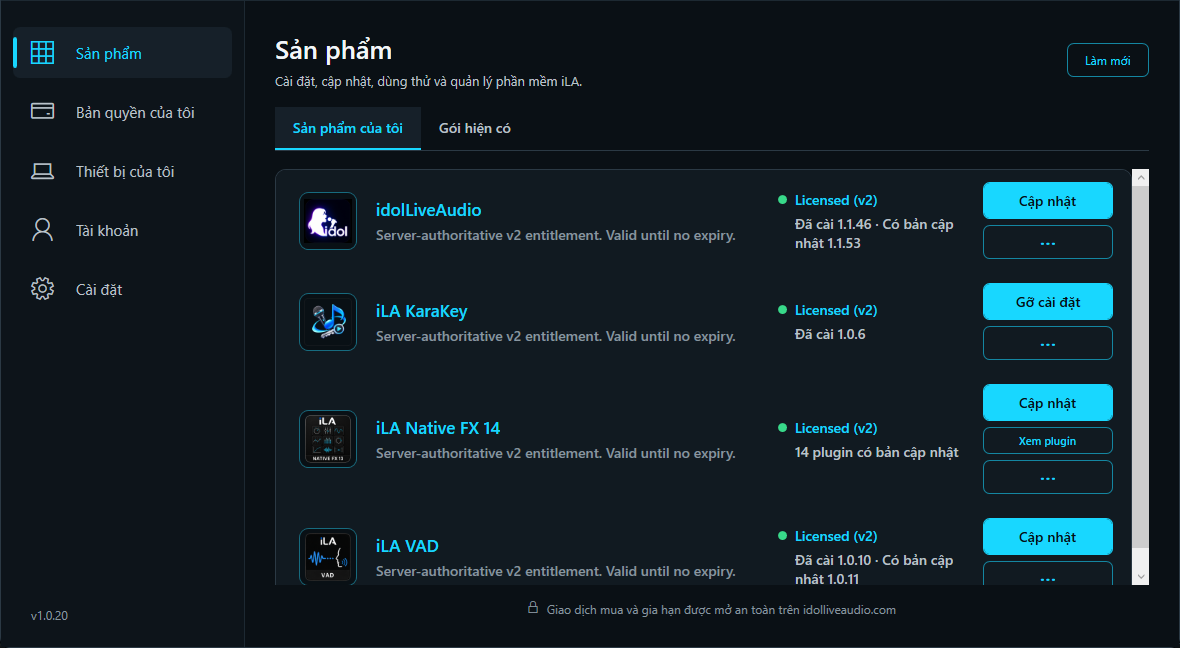
Open iLA Nexus, sign in with the account that owns a license or trial, then choose Refresh. My Products shows the Licensed (v2) state, installed version, and available updates.
WHAT TO INSTALL
Install in this order
The main workstation for Vocal, Music, VST3, presets, and recording.
The driver/engine connecting hardware, Windows, idolLiveAudio, and streaming apps.
The optional plugin suite. Compatible third-party VST3 plugins can also be used.
Accept the Administrator prompt when installing iLA VAD. The current installer supports clean install, upgrade, and repair on a PC that already has the driver; you do not need to remove the old version first.
FINISH
Restart if Windows asks
Some driver updates require a Windows restart before audio endpoints work correctly. If the installer requests one, save your work and restart before opening idolLiveAudio.
- iLA Nexus shows idolLiveAudio and iLA VAD as Installed.
- idolLiveAudio opens without a license error.
- Start iLA VAD can open/start the audio engine.